New: now in public beta for Mac & Windows
Your agents, one hotkey away
Snippbot Desktop is a native app for your own Snippbot daemon. Press ⌥ Space for Quick Chat from anywhere, or open the full workspace and run every conversation side by side.
Free. Apple silicon build shown; Intel Macs and all files. Needs a Snippbot daemon 0.11.1 or newer.
One app, two ways to work
A quick window for a quick question, and a full workspace for a long session. Both show the same chats, live.
Quick Chat
From anywhere, in under two seconds
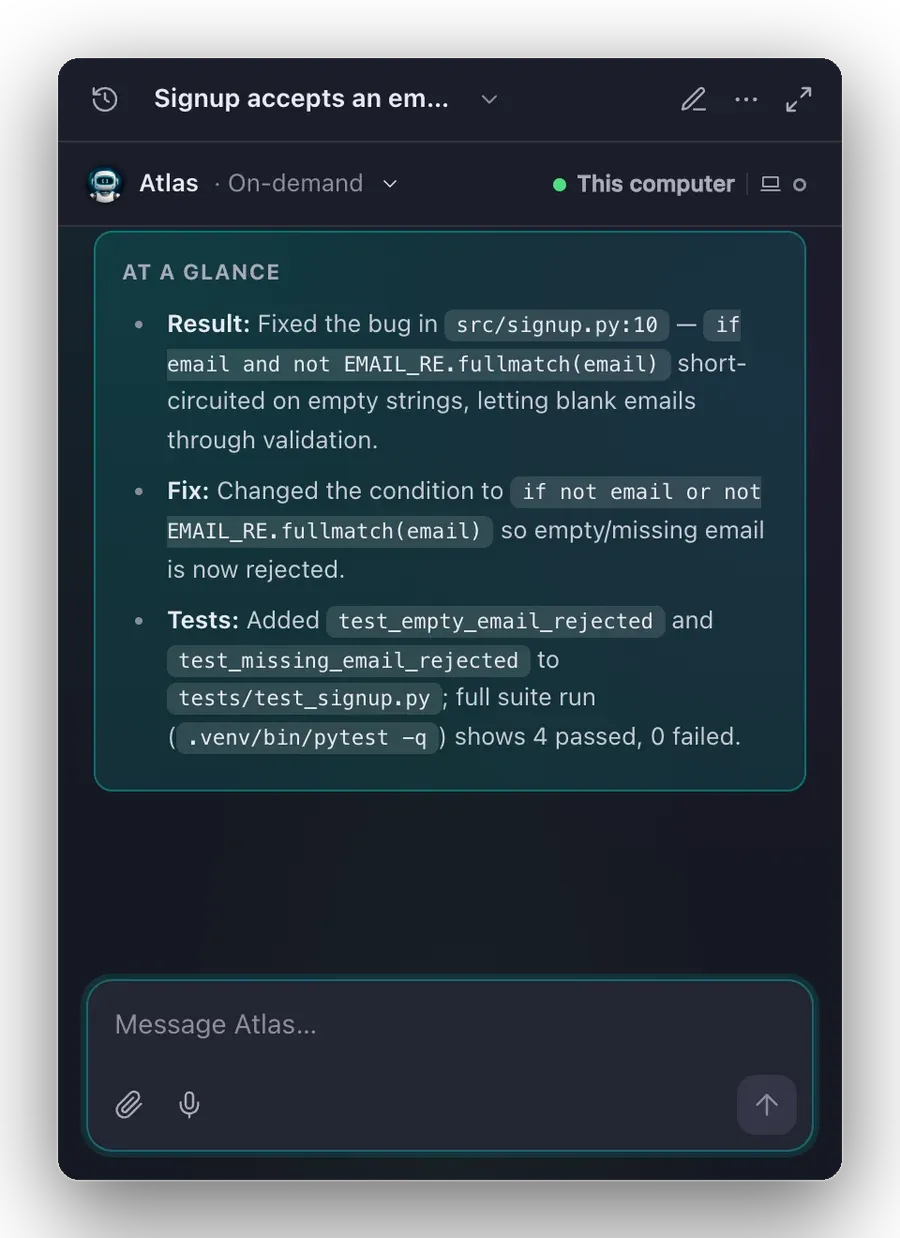
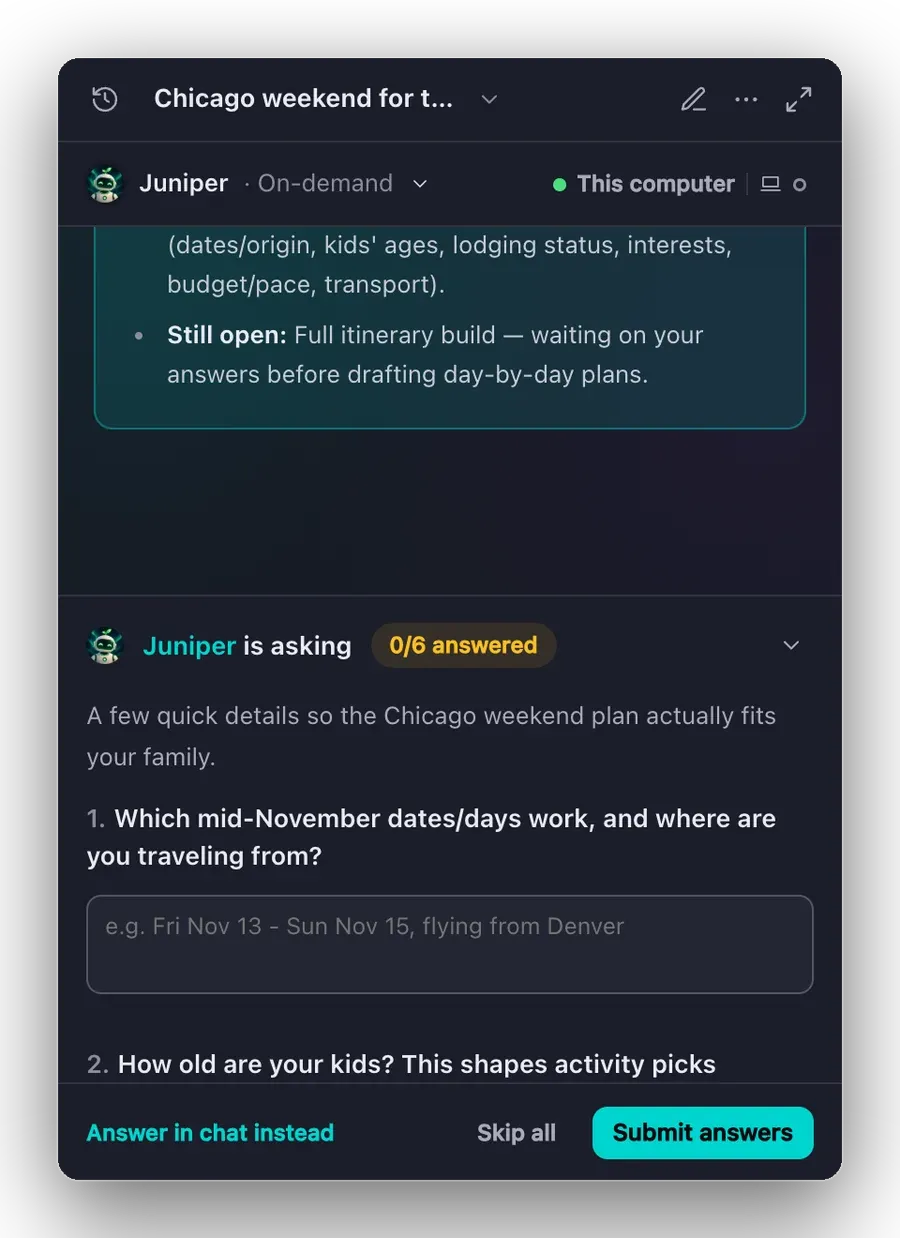
Press ⌥ Space on a Mac or Alt + Space on Windows, or click the menu-bar icon. Quick Chat floats above your work, continues your latest chat, and hides when you click away. Answer a waiting question without opening anything else.
Full workspace
Your whole team of agents on one screen
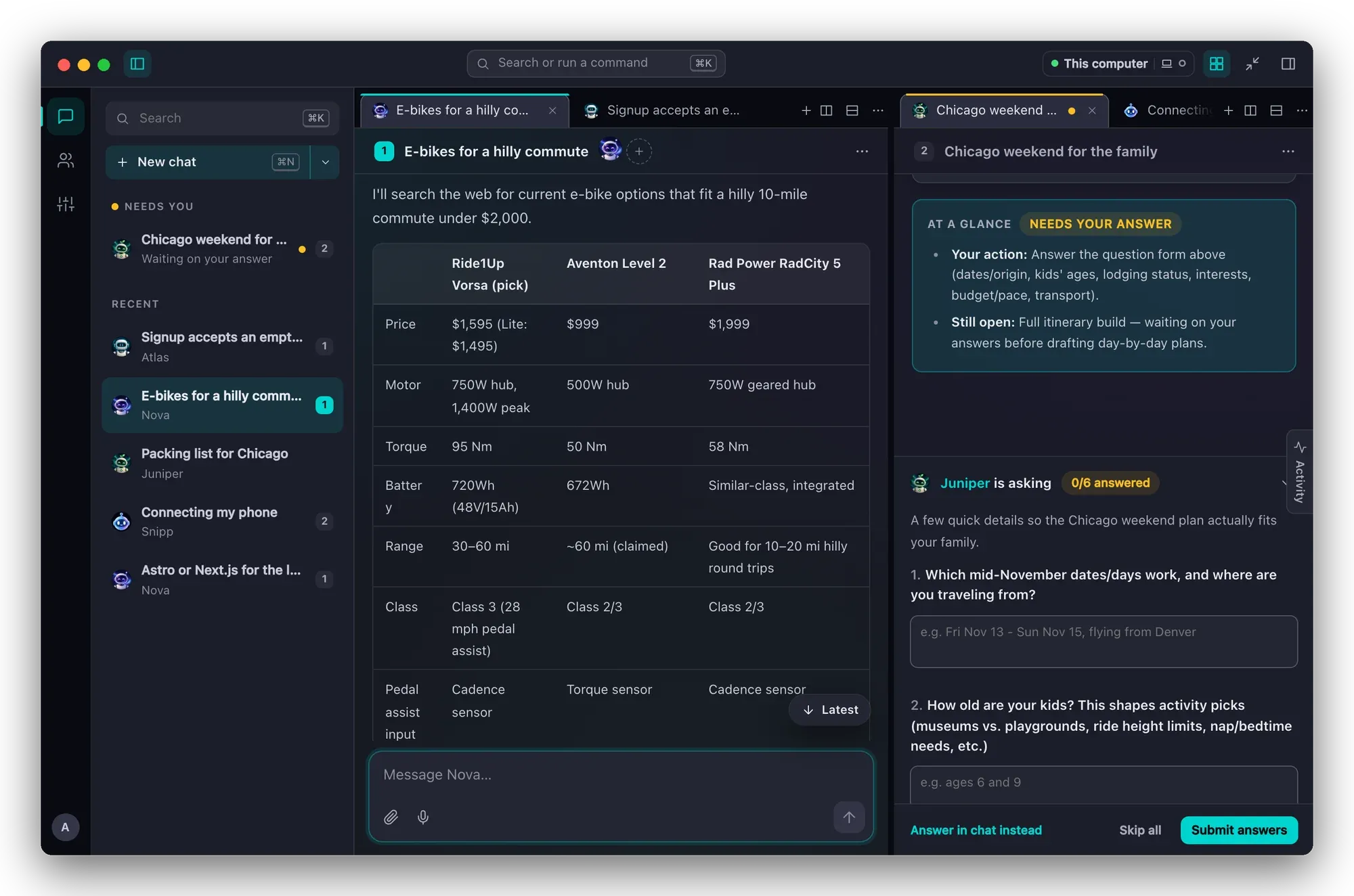
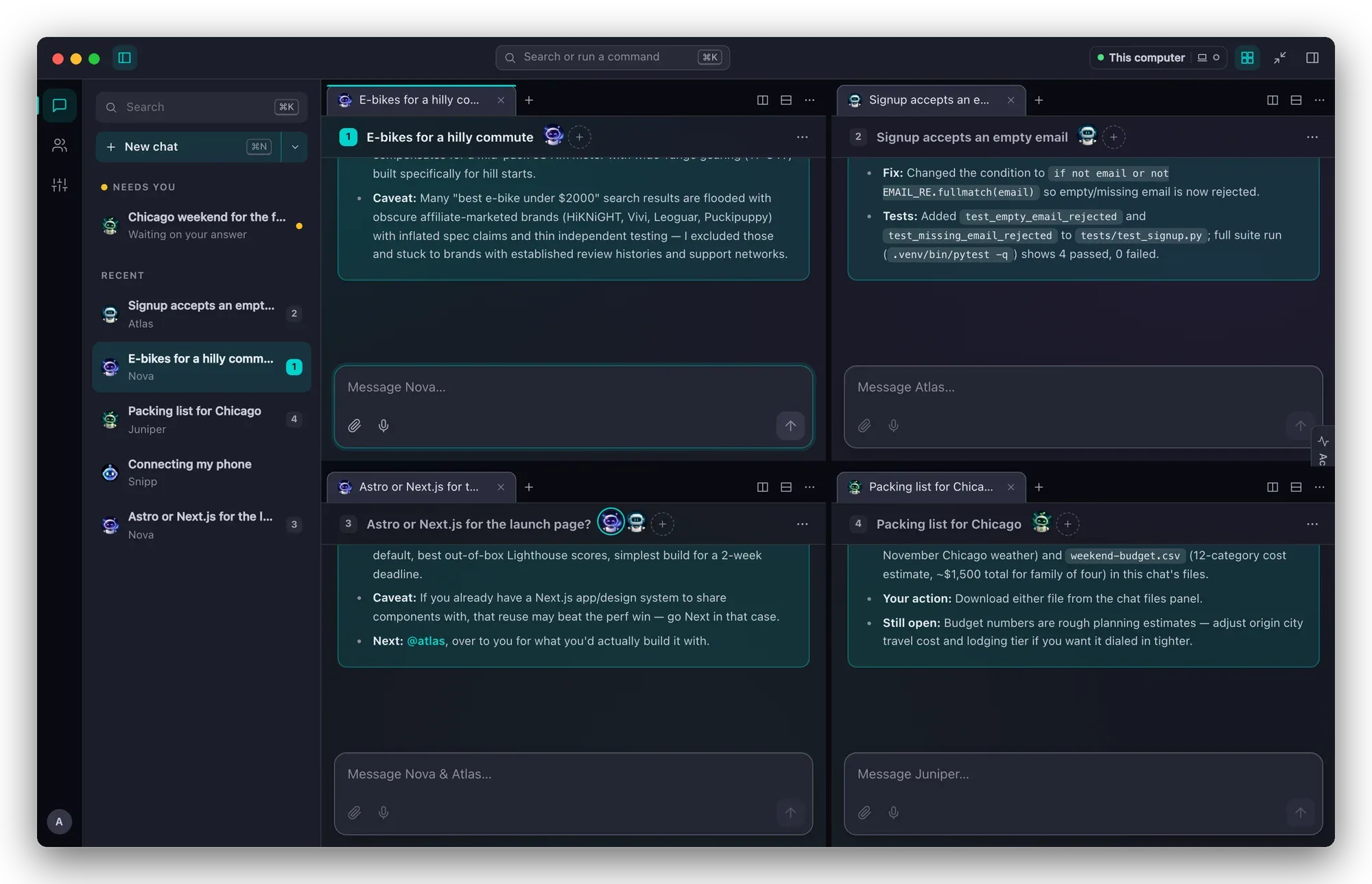
Tile research, code and planning chats in a grid, watch which ones are working, and jump between them with the keyboard. The inspector shows activity, jobs, files and devices for whichever pane you're in.
Full workspace
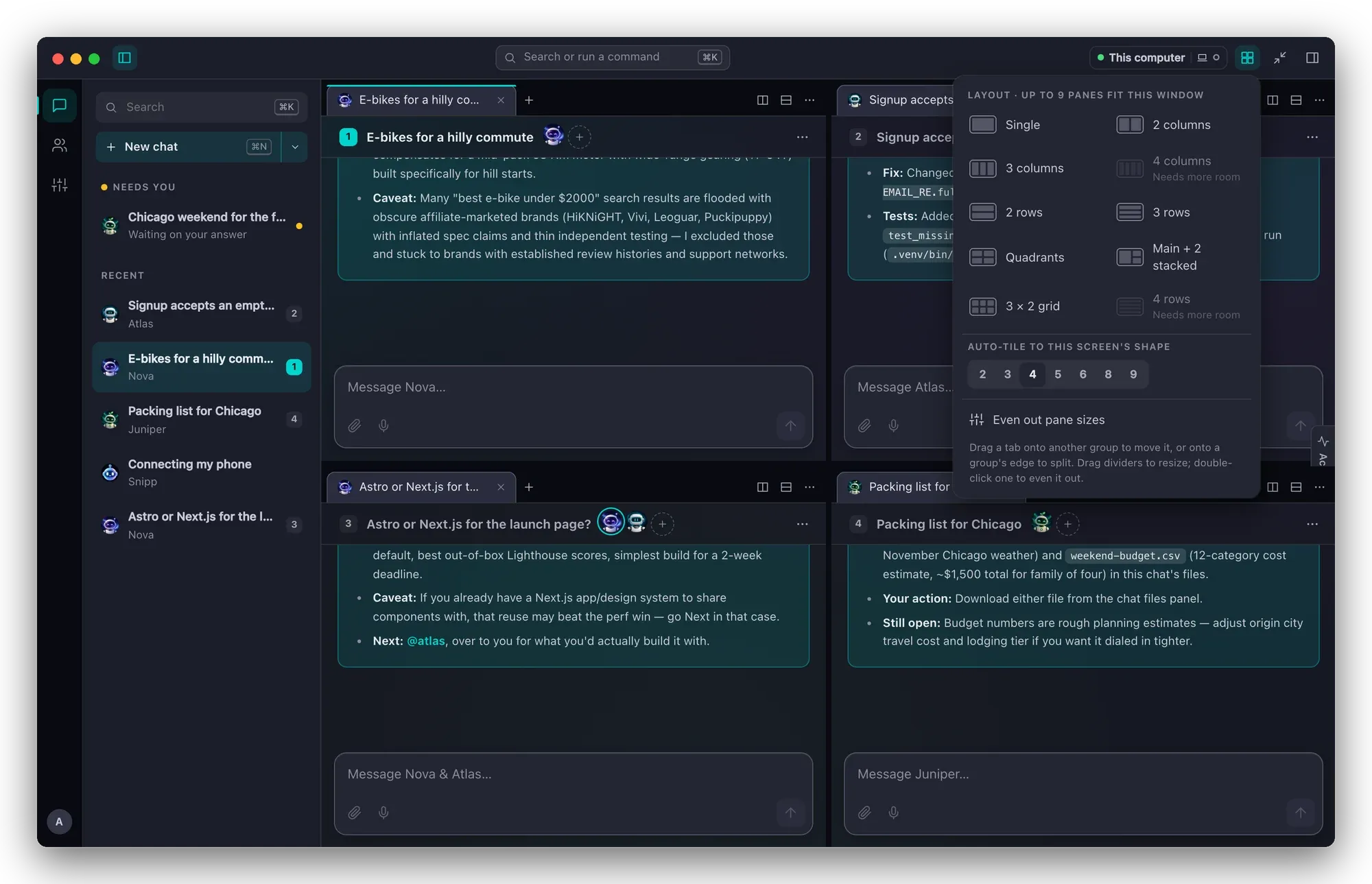
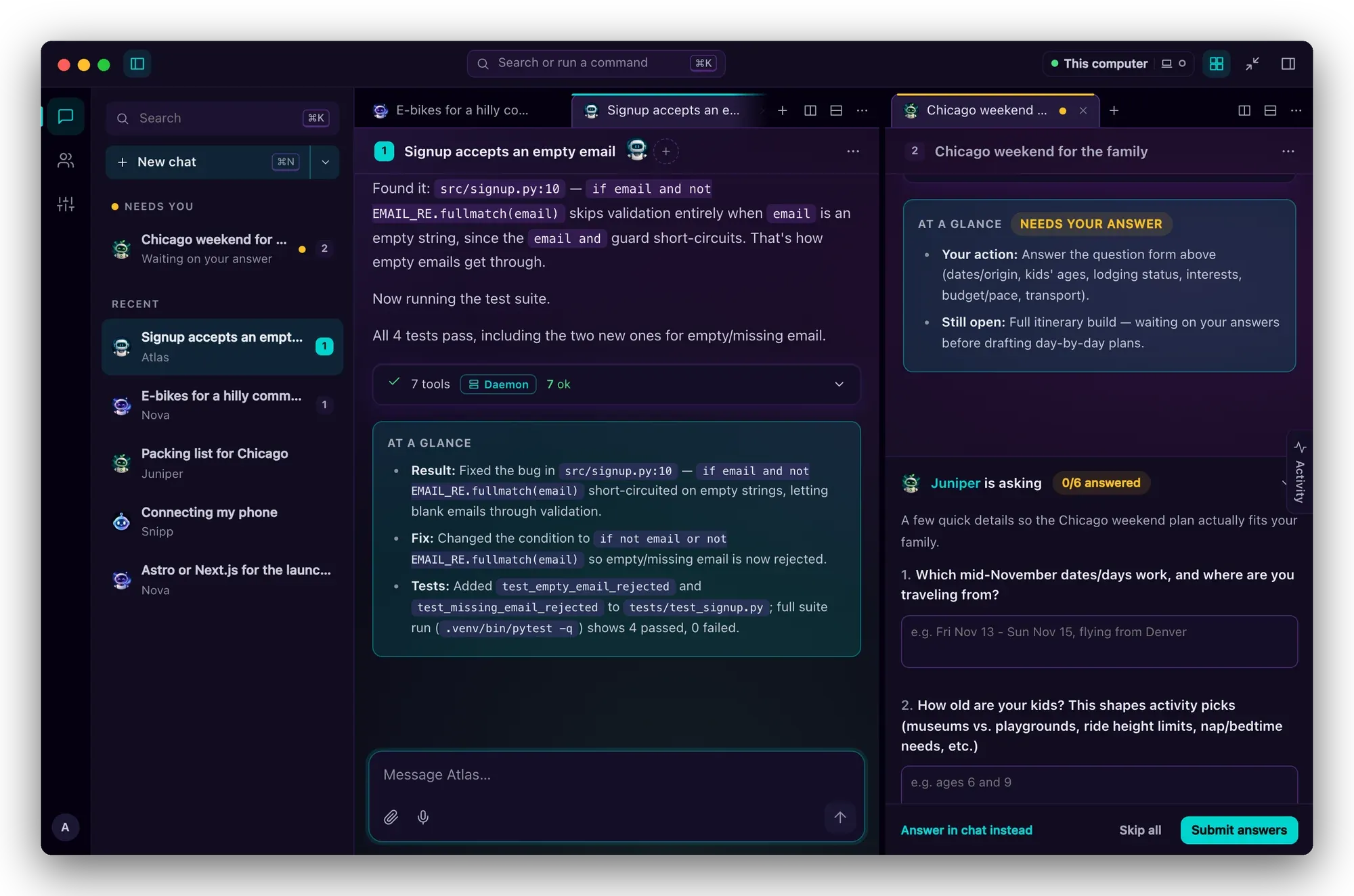
Every chat, side by side
Tab groups work like a code editor. Split right or down, drag a tab onto a pane edge, or pick a layout and let the app tile it to the shape of your screen. Each group keeps its own tabs, and the sidebar shows which chats need you and which are still working.
- Up to 12 panes, auto-tiled
- Drag tabs between groups
- Tab colours you choose
- Needs you / Working / Recent
Agents ask, you answer
Questions and approvals stay in view
When an agent needs a decision, its question form pins above the composer: pick options, type an answer, or skip. Approvals show the diff and where it will run, on the daemon or on this computer, before you say yes. You get a notification and a Dock badge when you're not looking.
- Pinned question forms
- Diff preview on approvals
- Plan / Approve / Auto modes
- Native notifications
See the work
Every tool step, every result
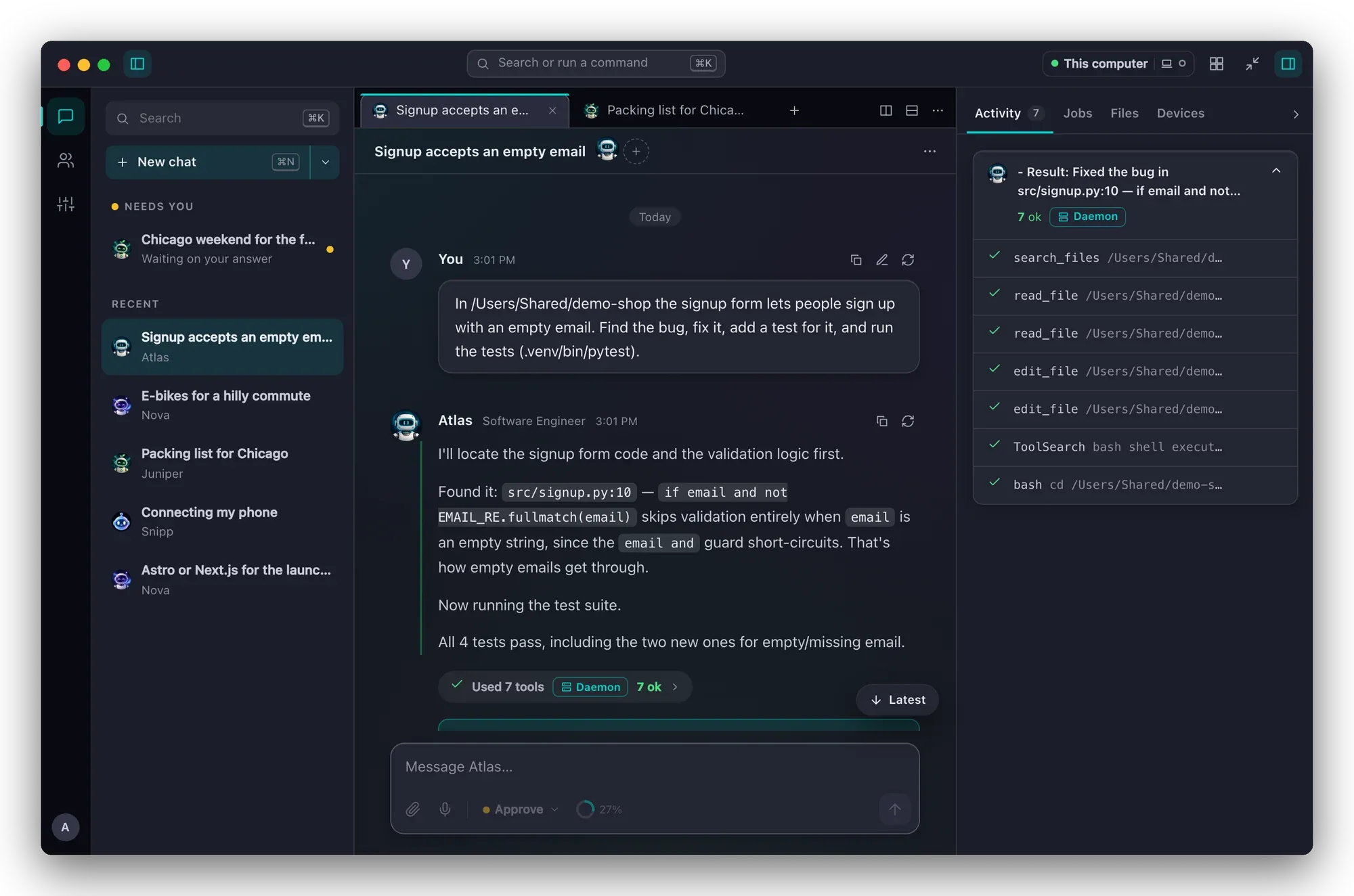
Replies stream token by token with each tool call grouped and tagged by where it ran. The inspector follows the focused pane: activity, background jobs and check-ins, files and devices. Each reply ends in an 'At a glance' card, so you can see the outcome without reading the whole thread.
- Grouped tool steps
- At a glance summaries
- Jobs and check-ins
- Into reply or after reply
Rooms
Bring more than one agent
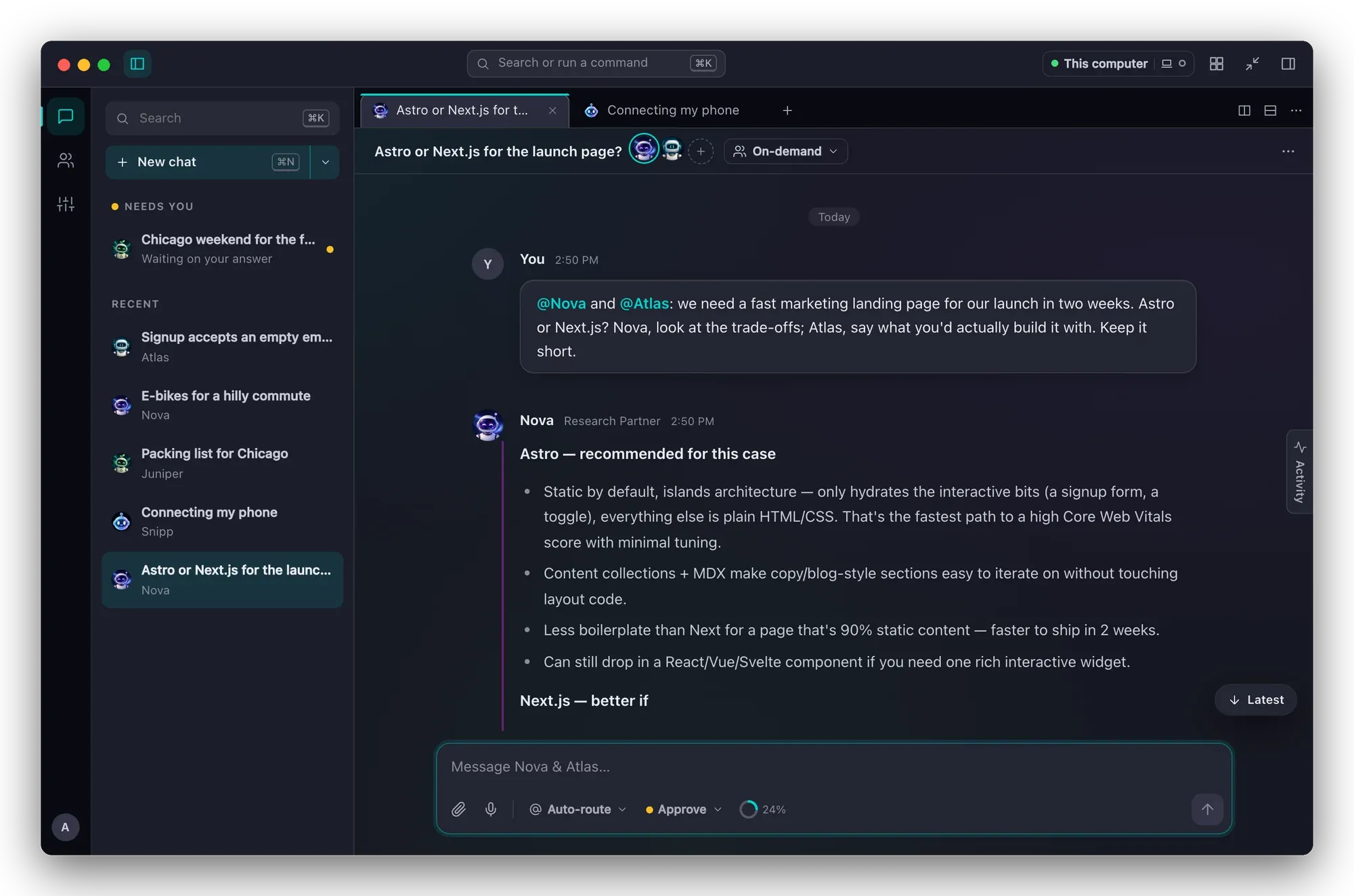
Mention an agent with @ and it joins the chat. Choose who answers, how many replies an agent can make, and whether the room runs solo, on demand or collaboratively.
- @mentions invite agents
- Auto-route or pick who answers
- Solo / On-demand / Collaborative
- Per-agent models
Files
What your agents make, one click away
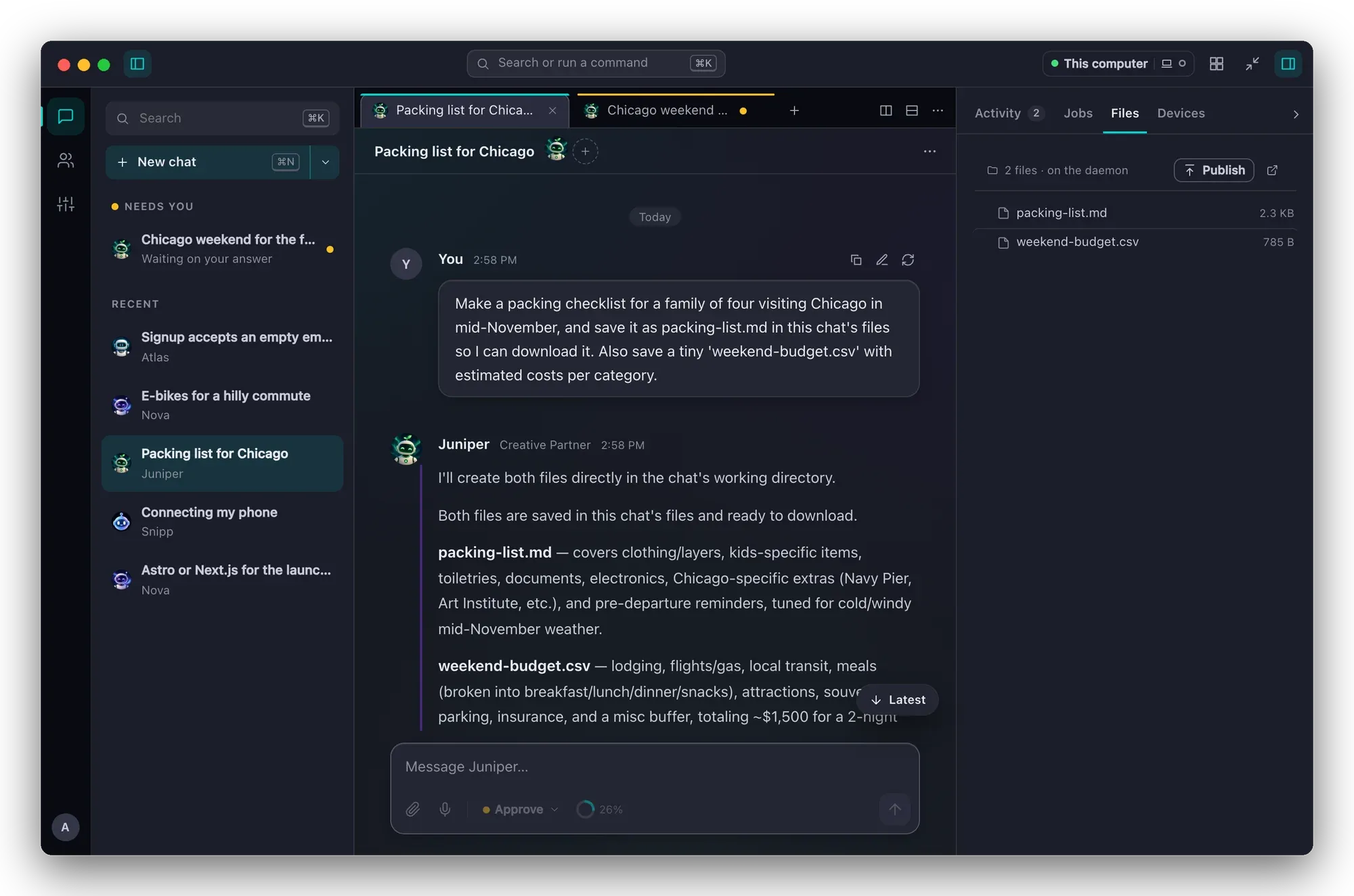
The Files tab lists everything in the chat, on the daemon. Preview images, PDFs, video, audio, Markdown, HTML and code, then attach, download or pop the files out into their own window.
- Inline previews
- Pop-out Files window
- Save to this computer
- Paste or drop up to 10 files
Keyboard first
Search or run anything with ⌘K
Jump to any chat, start one with a specific agent, split panes, switch themes or open settings without leaving the keyboard. Stop a reply with ⌘. and move between groups with ⌘1–9.
- ⌘K command palette
- ⌘N new chat
- ⌘\ split right
- ⌘. stop the reply
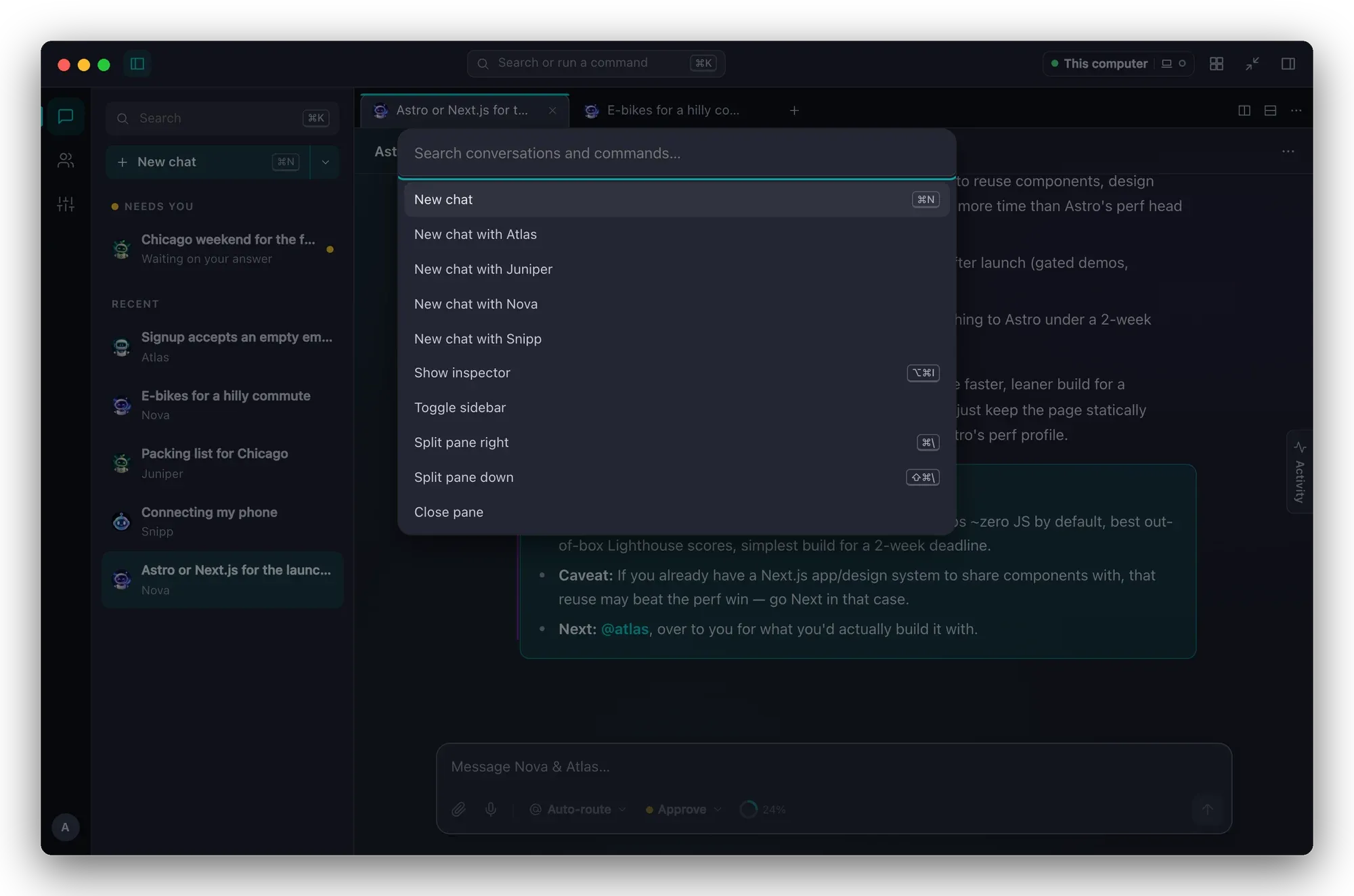
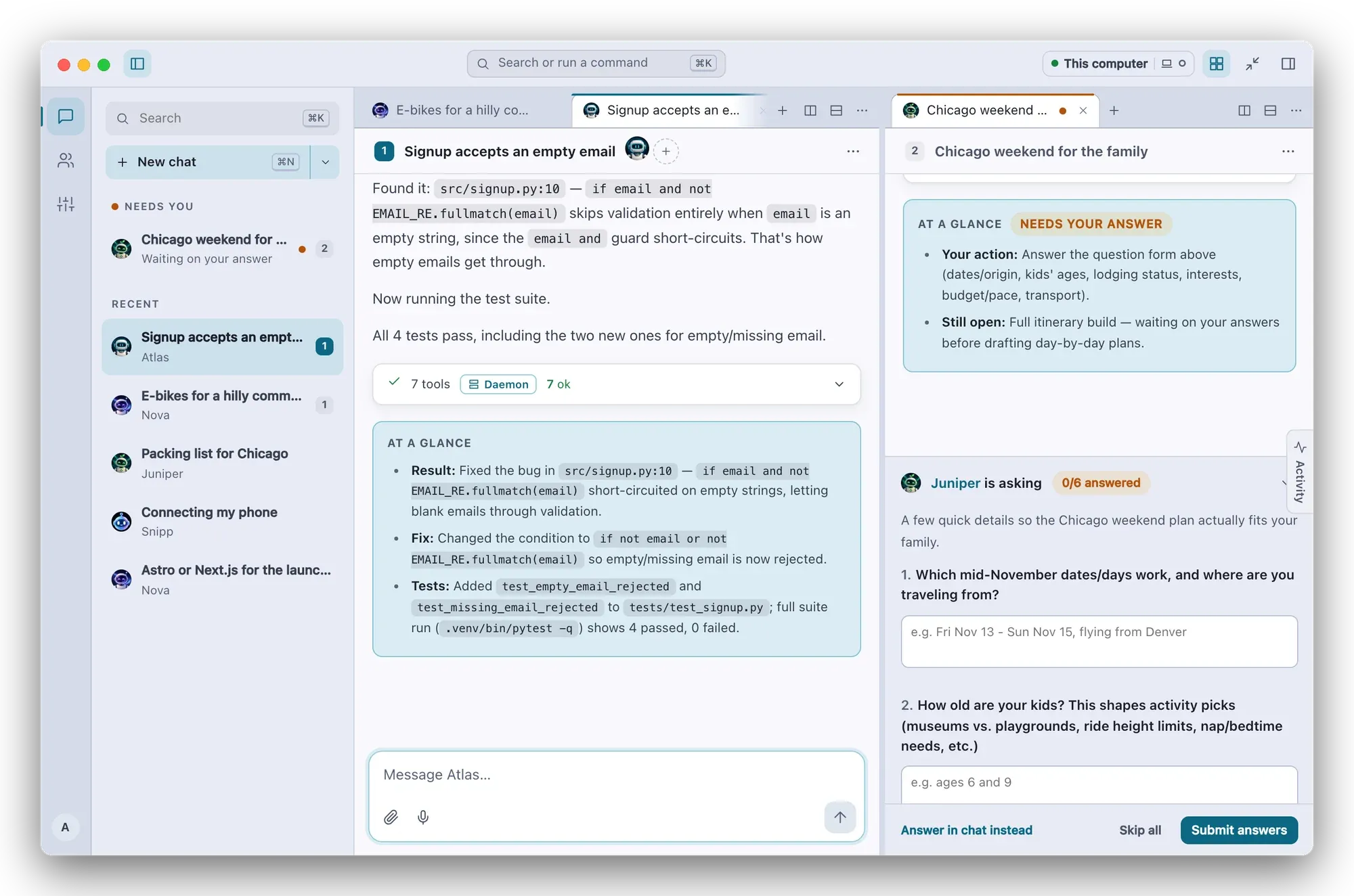
Three themes, one click
Snippbot, Aurora and Light. Pick one in Settings or from the command palette.
A window into your daemon, nothing more
No Snippbot account and no cloud in between. The app talks to the daemon you run.
Your Keychain, not a browser cookie
Sign-ins live in the macOS Keychain or Windows Credential Manager. The window only ever gets short-lived tokens; the long-lived ones never leave the native side.
Local, network or remote
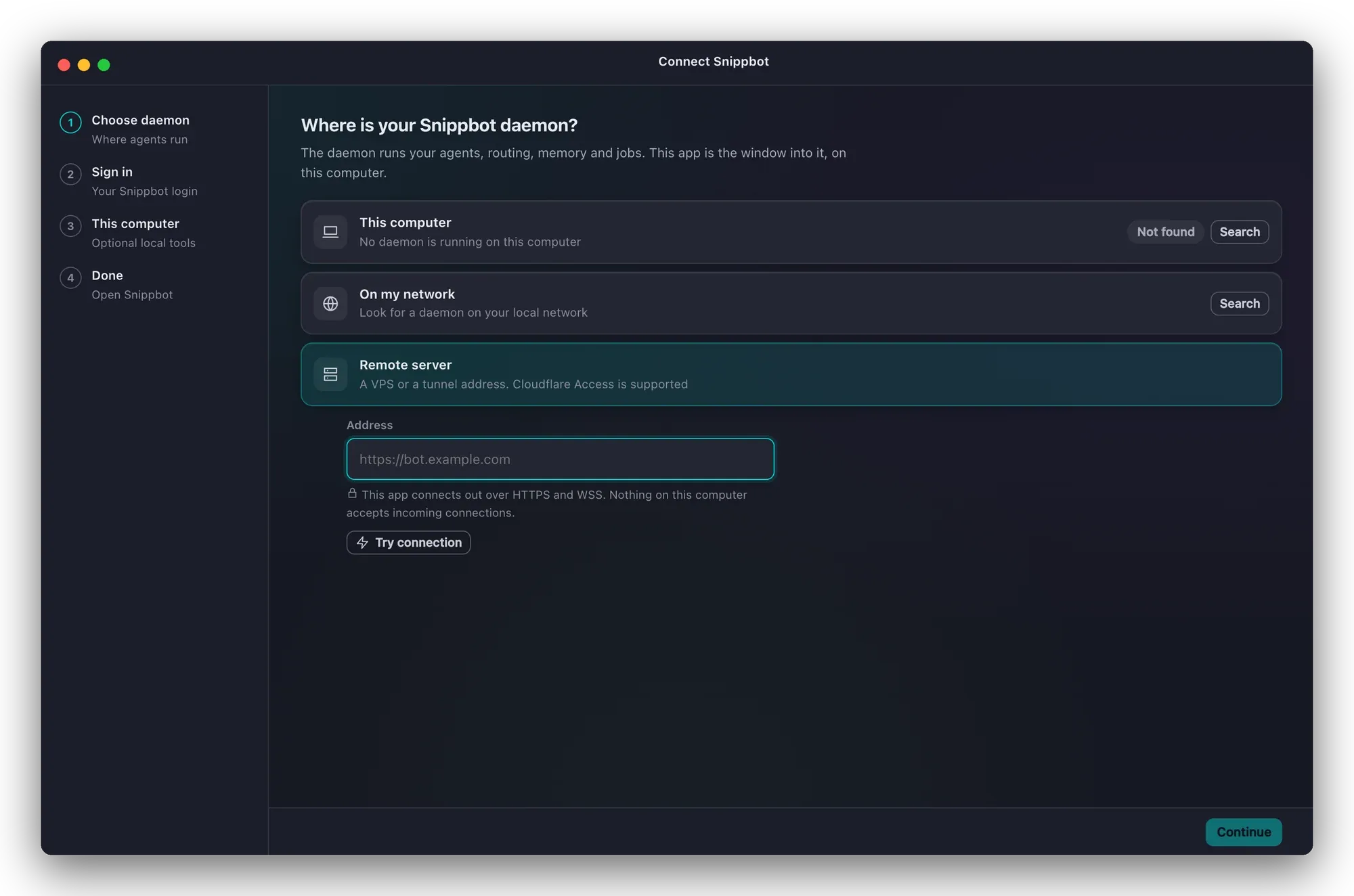
Connect to a daemon on this computer, find one on your network, or check a remote address step by step. Cloudflare Access service tokens are supported. Plain http is only allowed on loopback and private networks.
Tools on this computer, opt-in
Let the daemon's agents read and write only the folders you pick. Shell commands stay off until you turn them on, and you can remove this computer at any time.
Close it, the work keeps going
Agents, memory and jobs run on your daemon. Close the app and they keep working; reopen it and every chat picks up where it is.
Download the beta
Version 0.1.2. Every release is on GitHub with its release notes.
First launch on a Mac
The beta isn't notarized yet, so macOS stops the first launch.
- Drag Snippbot to Applications and open it once.
- Open System Settings → Privacy & Security.
- Click Open Anyway next to Snippbot, then confirm.
First launch on Windows
The installer isn't code-signed yet, so SmartScreen warns you.
- Run the installer; it installs for your account only.
- On the SmartScreen prompt, click More info.
- Click Run anyway.
Then connect it
Setup asks where your daemon runs: this computer, your network, or a remote address. Sign in with your web UI username and password, or pair from the web UI under Devices → Pair Desktop App. Optionally let the daemon run tools in folders you choose on this computer. Step-by-step guide →
System requirements
- macOS 13 Ventura or later, Apple silicon or Intel
- Windows 10 (1809 or later) or Windows 11; WebView2 installs automatically if it's missing
- A Snippbot daemon, version 0.11.1 or newer, on this computer, your network, or a server
Not in the beta yet
- Code signing and automatic updates. For now, download new versions from GitHub.
- A Linux build.
- Touch ID or Windows Hello lock.
- Memory, Skills, Workflows and the Marketplace open in the web UI.
Also in your pocket
The same chats, on Android. Pair your phone with the same daemon and pick up wherever you left off.
Snippbot for AndroidHow it was built
Spec to public beta in four days: one developer and two Snippbot agents, with every milestone and the numbers behind it.
Read the build storyAll releases and notes: github.com/saixiong/snippbot-desktop-releases